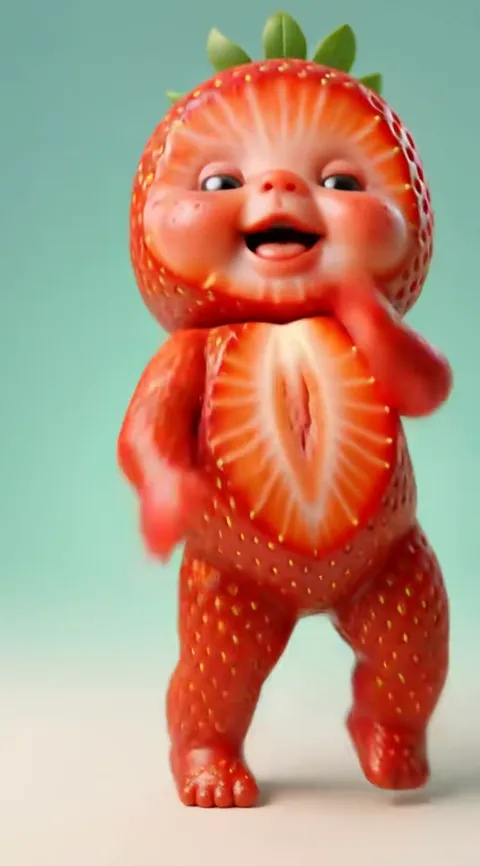
The most common AI baby dance fails are face drift, an adult body on a baby, a missing costume, stray text, blurry spins, two babies blending, a pet with the wrong markings, an odd clip length and muted sound after upload. Almost all of them trace back to the photo, the dance or the model tier, not to anything you typed. With Baby Dance AI you fix them by changing the photo, picking another dance, choosing a stronger model or re-rendering, and a failed or blocked render returns its credits automatically.
Key takeaways
- There is no prompt to repair on Baby Dance AI, because each of the 17 dances has its own motion, costume and sound built in. Your levers are the photo, the dance, the model and a re-render.
- A sharper, front-facing photo fixes more problems than any other change.
- The Pro model costs more credits than Standard, but it holds faces and fast moves more steadily.
- A fail is not always your fault. If a render fails or is blocked, the credits come back on their own.
How to read a failed render before you change anything
Watch the clip once at normal speed and once with your eyes on a single thing: the face, then the body, then the edges of the frame. Most problems show up in only one of those places, and the place tells you the fix.
Here is the short version of the fixes used in the nine sections below:
- Use a sharper, front-facing photo. The model reads the photo as its reference, so a clear one helps every problem about likeness.
- Use a full-body photo. This helps with body shape, legs and costume.
- Pick the Pro model. The tiers range from Standard and Fast to Pro (Seedance 2.0) and Ultra (Seedance 2.5), made by ByteDance. A stronger tier handles fast motion and fine detail better, at more credits per video. The pricing page lists the cost of each.
- Pick another dance. A calmer dance gives the model fewer chances to lose a face.
- Re-render. Results vary between runs, so a second attempt on the same photo is a normal step.
For a standard video (Standard model, 720p) the cost is 10 credits, so a re-render on the default setting is cheap enough to try once before changing the photo. Credits never expire.
1. Face drift: the baby stops looking like you
What it looks like. The first second looks right, then the eyes change shape, the nose shifts or the face turns into a generic baby by the end.
Why it happens. A video model has to keep the same face over hundreds of frames. Head turns and fast moves are the moments where it loses the thread, and an adult turned into a toddler has the most to reconcile.
Fixes.
- Use a sharper, front-facing photo in even light, with no sunglasses, mask or heavy filter.
- Pick a slower dance such as the Original AI Baby Dance, a sway with hands on hips, instead of a spinning one.
- Move up to the Pro model.
- Re-render once. A different run can hold the face better.
If you want the full picture of what is kept and what is guessed, read How AI Turns an Adult Photo Into a Dancing Baby.
2. An adult body on a baby
What it looks like. A toddler's face on long legs, broad shoulders or an adult's posture.
Why it happens. The model sees your adult frame in the photo and sometimes carries it into the body. This is more likely when the photo shows a lot of your body and the pose is strongly adult, such as arms crossed or a wide stance.
Fixes.
- Use a photo that shows mostly your face and shoulders, or a relaxed, neutral posture, so there is less adult body to copy.
- Pick a dance with a clear toddler build, such as Baby Boo in a knitted romper.
- Use the Pro model, which tends to follow the dance's toddler proportions more closely.
- Re-render.
If you want to keep your real body on purpose, that is a different template: Dance as Yourself keeps your age, face and outfit.
3. The costume does not show
What it looks like. The dance should have a pumpkin tutu, a Santa jacket or a strawberry suit, and you get your everyday clothes, or a half-finished outfit.
Why it happens. Your photo's clothing competes with the template's costume. A bold jacket or a large logo in the photo can win over the template.
Fixes.
- Use a photo in plain clothes, or one cropped to the face and shoulders.
- Choose a dance whose costume is distinct. Halloween Baby and Santa Baby have strong, unmistakable outfits.
- Pick the Pro model for steadier follow-through of the costume.
- Re-render.
Some dances are meant to keep your clothes. The Dance as Yourself template copies the outfit in your photo, and Your Own Dance Video resizes the outfit from your photo to fit a toddler.
4. A watermark or text appears in the video
What it looks like. Letters, a logo or something that looks like a watermark in the corner, or garbled words on a sign or on clothes.
Why it happens. Baby Dance AI adds no watermark to paid videos. What you are seeing is the AI drawing text, which video models are known to do badly. It is more likely when your photo has a logo, a slogan on a t-shirt or a sign in the background.
Fixes.
- Use a photo with no visible text, brand marks or posters behind you.
- Crop to the face and shoulders.
- Pick another dance, because the scene changes the amount of text-like detail around the baby.
- Re-render.
If you see an actual logo that you did not provide, re-render before you post, and do not publish a clip with a mark you cannot explain.
5. Blurry spins and smeared movement
What it looks like. In a spin or a quick head turn, the face smears, the arms double or the background melts.
Why it happens. Fast motion is the hardest thing for a video model to render cleanly, and low resolution makes it worse.
Fixes.
- Pick the Pro model, and a higher resolution if your credits allow. Pro at 720p costs 20 credits, against 10 for Standard.
- Pick a dance with less spin. Thank You Baby and Cool Baby are mostly sways, claps and hip rolls.
- Use a sharper photo, because a soft source gives the model less to hold on to while it moves.
- Re-render.
The Baby Boo routine includes a spin, so that is one to try on Pro if you want it.
6. Two babies blending into one
What it looks like. In the Twin Babies dance, the two faces swap features or merge, or one baby copies the other's face.
Why it happens. The template holds two characters at once, and in the moments where the babies face each other and hug, the model can mix up who is who.
Fixes.
- Use two separate photos, one face each, with similar light and similar crops.
- Make sure the two people do not look nearly identical in the photos, with the same hair and the same clothes.
- Pick the Pro model.
- Re-render. If one run blends the babies, another often keeps them apart.
If the pair keeps blending, try rendering each person alone with a one-baby dance and putting the two clips side by side in your editing app.
7. A pet with the wrong markings
What it looks like. A dog or cat whose patches, socks or face stripes are in the wrong place, or whose ear shape changes.
Why it happens. Markings are detailed, and the dance also asks the pet to stand on its hind legs, which means the body must be rebuilt.
Fixes.
- Use a photo where the whole pet is visible and the face is sharp, in even light.
- Make sure the pet is the only animal in the frame.
- Pick the Pro model for finer pattern detail.
- Re-render.
The Pet Dance page has more, and the AI pet dance page explains how pets are handled. Rabbits and other pets are less predictable than dogs and cats.
8. The clip is the wrong length
What it looks like. The video is shorter than you expected, or it ends before a favourite move.
Why it happens. Each dance has its own length, from 10 to 15 seconds, because the length follows the original routine. You do not set it yourself.
Fixes.
- Pick the dance whose length suits you. If you want the longest result, look at the dance page for its timing.
- For a dance that is not a template, use Your Own Dance Video, which accepts a clip of 4 to 15 seconds and follows its timing.
- If you need a longer post, join two clips in your editing app. That is the one fix that happens outside Baby Dance AI.
Re-rendering will not change the length, so do not spend credits on it.
9. Sound is muted after you upload
What it looks like. The MP4 plays with sound on your phone, but the post is silent on TikTok, Instagram or YouTube Shorts.
Why it happens. Some original sounds are commercial songs, and platforms can mute or remove audio they cannot match to a licence. The video itself is fine.
Fixes.
- Pick the same sound inside the app and post the video with that sound instead.
- Upload the video without sound and add the platform's own sound.
There is a longer walkthrough in Posting Your AI Baby Dance on TikTok, Reels and Shorts. Re-rendering does not help here, because the problem is the platform and not the video.
Which fix first
A simple order saves credits:
- Check the photo. Is it sharp, front-facing and free of text?
- Check the dance. Is it too fast for your face?
- Re-render once on the same settings.
- Move up to the Pro model.
- Try a different dance.
Remember that a failed or blocked render returns its credits automatically, while a render that finished but looks wrong is a normal paid render. Credit packs are not refundable, which is why a quick photo check before you generate is worth it. You can try again from the generator, and the AI baby dance filter page explains how this differs from a filter app.
Frequently asked questions
Why does my AI baby dance not look like me?
Face drift is the usual reason. Baby Dance AI keeps your face shape, eye colour, hair colour and skin tone, but small details change when the head turns or the dance is fast. Use a sharper, front-facing photo, pick a slower dance, try the Pro model or re-render once.
Do I lose credits when a render fails?
No. Baby Dance AI returns credits automatically when a render fails or is blocked. A render that finishes but looks wrong still counts as a completed video, so check your photo and dance before you generate again. A standard video costs 10 credits and the Pro model at 720p costs 20.
Does Baby Dance AI put a watermark on my video?
No. Paid videos from Baby Dance AI carry no watermark. If you see stray letters or a logo, the AI has drawn text from your photo or scene. Use a photo without logos, slogans or signs, pick another dance, or re-render before you post.
Can I make the AI baby dance longer?
Not inside the template. Each Baby Dance AI dance has its own length between 10 and 15 seconds, set by the original routine. The Your Own Dance Video option accepts a source clip of 4 to 15 seconds. For a longer post, join two finished clips in your editing app.
Why is my AI baby dance muted on TikTok or Instagram?
The MP4 from Baby Dance AI includes the dance's original sound, but some sounds are commercial songs and platforms can mute them. Choose the same sound inside the app instead, or post without audio and add the platform's sound. A re-render will not fix a muted post.