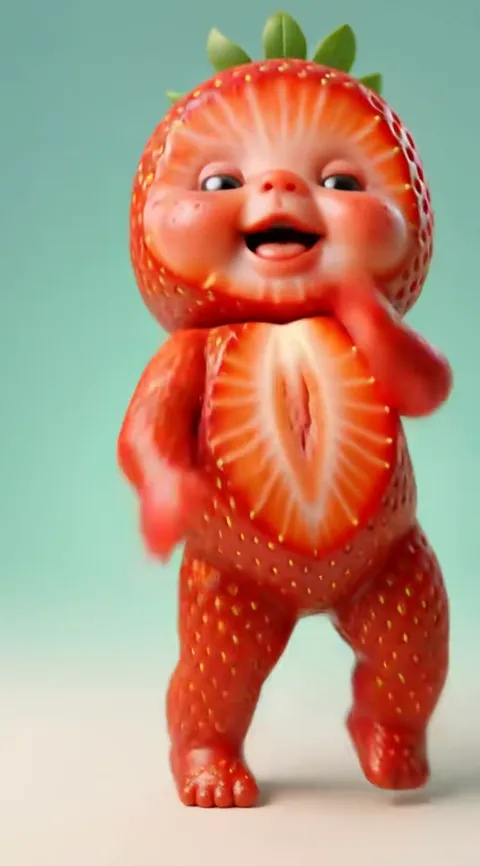
Post your AI baby dance in 9:16 on TikTok, Instagram Reels and YouTube Shorts, keep the dance's original sound, switch on the platform's AI label, and leave your child's full name and location out of the caption. Baby Dance AI delivers a 10 to 15 second MP4 with the original sound and no watermark on paid videos, in 9:16, 1:1 or 16:9, so the file is ready to upload without editing. The choices that matter happen around the render: the ratio, the sound, the caption and who gets to see it.
Key takeaways
- Choose 9:16 for TikTok, Reels and Shorts. Use 1:1 for a feed grid or a message, and 16:9 for a TV or a slideshow.
- The original sound is in the MP4. If a platform mutes it, pick the same sound inside the app.
- Label AI content with the platform's own AI label and say in your caption that it is AI.
- Post Halloween Baby before 31 October and Santa Baby in December, and make them a few days early.
- For children: no full names, no location, and consider Close Friends or a private account.
Which ratio to pick before you render
The ratio is chosen in the generator before the video is made, so decide where the clip will live first. Baby Dance AI offers three: 9:16, 1:1 and 16:9. The credit cost of a video depends on the model and the resolution, not the ratio, so the choice costs nothing extra.
| Where it will be posted | Ratio | Why |
|---|---|---|
| TikTok, Reels, YouTube Shorts, Stories | 9:16 | Fills a phone screen without bars. |
| Instagram feed, a group chat, a profile grid | 1:1 | A square works in a feed or a message without cropping. |
| A TV, a slideshow, a family video | 16:9 | Shows more of the scene, such as the resort in the Beach Baby template. |
If you are unsure, pick 9:16. Several template pages say the same: the sway in The Original AI Baby Dance stays fully in frame in 9:16. A vertical clip can be cropped for a square post later, but a landscape clip cannot be made taller without losing the sides.
Formats on each platform
All three major short video platforms take a vertical MP4 of this length. Details such as maximum duration, file size and where each setting sits change from time to time, so trust the current upload screen over any guide, including this one.
TikTok
Upload the MP4 from your camera roll in the app. The clip is under 15 seconds, so it fits every duration limit, and you can post the file as it is. If you add text, place it in the middle of the frame, away from the buttons on the right and the caption at the bottom.
Instagram Reels
Upload as a Reel, not a feed post, if you want it to reach beyond your followers. Keep the key action in the middle of the frame, because the interface covers the bottom and the right edge. If you also want the clip on your grid, the 1:1 version posts there without cropping.
YouTube Shorts
Upload the vertical MP4 and the platform will treat a vertical video of this length as a Short. Add a short title and a descriptive first line.
Messages and cards
For WhatsApp, iMessage or email, any ratio works. Santa Baby suits a video holiday card. For a group card, render each family member separately and send the clips one after another.
Finished files stay available to download for about a day, so save the MP4 to your phone or computer as soon as it is ready. After that you would have to render again.
The original sound, and what to do if a platform mutes it
Every Baby Dance AI video is an MP4 with the dance's original sound added after the render. That is part of why the clip feels like the trend you saw.
Some of those sounds are commercial songs. A platform may mute, replace or remove audio it cannot match to a licence, especially on a post made from an uploaded file. This is a platform decision, not a fault in the video, and a re-render will not change it.
If your post goes silent:
- Check the file. Play the MP4 on your phone. If it has sound there, the file is fine.
- Pick the same sound inside the app. Search for the sound by name in TikTok or Instagram, attach it to your post and turn the file's own audio down to zero, so the two do not overlap.
- Post without sound and add the platform's sound. This leaves the choice of audio with the platform and avoids a mute.
- Expect differences. A sound that is offered on TikTok may not be offered on Instagram or YouTube in your country.
The dances built on well-known commercial songs, such as Supalonely Baby, carry the most risk. Baby Boo and Toc Toc Baby use sounds that came with the trend. In every case the safe route is the same: if the platform mutes the file's audio, choose the sound inside the app.
Label it as AI
An AI baby dance is an AI-generated video, and the honest way to post it is to say so. Platforms ask for it, and a clear label keeps your audience's trust.
- TikTok has an AI-generated content label that you can switch on in the post settings before you publish. It can also add a label itself to content it detects as AI.
- Instagram shows an AI label on content made or edited with AI, and it asks creators to disclose realistic AI content. Look for the option in the post settings.
- YouTube asks creators to disclose realistic altered or synthetic content in the upload flow.
The exact names and menus change, so use whatever the upload screen currently shows. Do not try to hide that the clip is AI. A cartoonish dancing toddler is unlikely to fool anyone, but a clip that looks like a real home video of a real baby could, which is why the labels exist.
Say it in the caption too. A line such as "Made with AI from one photo" is enough. Baby Dance AI is an independent tool that is not affiliated with TikTok, CapCut, Kling or the creators of the original dance clips, so do not word a caption as if it were.
Captions and hashtags that work honestly
You do not need clever copy for a 12 second clip. A good caption says what the video is, adds a human line and invites a reaction.
Caption ideas
- "Me as a baby, made with AI from one photo."
- "My partner as a toddler. AI got the eyebrows right."
- "Happy birthday to the baby inside Dave." Use the I Celebrate Me template for birthdays.
- "Tag someone who needs to be a dancing baby."
Hashtags that describe the video
Use tags that tell the truth about the content: #aibabydance, #babydanceai, #aigenerated, #aivideo, and the name of the dance, such as #babyboodance or #tikitikidance. Three to five tags are enough. Avoid unrelated trending tags added to borrow reach. They mislead viewers, and platforms tend to treat them as spam.
Avoid claims you cannot support. Do not say the dancer is a real baby when it is not, and do not invent numbers about how well the clip is doing. If you made it from your own photo, you can say that.
If you used someone else's photo, even a friend's, ask them first. Baby Dance AI is for photos you have the right to use.
When to post: Halloween, Christmas and birthdays
Seasonal dances give you a natural reason to post and a ready audience.
Halloween
Halloween Baby shows a toddler in an orange and black pumpkin tutu on a candlelit porch. The moves are cute rather than scary, so it suits a family post. Halloween is on 31 October, so make the clip a few days ahead and post in the last week or two of October, when people are posting costumes. A clip posted in November has lost most of its reason to exist.
Christmas
Santa Baby works as a post and as a card. Make it early in December, because renders can take longer when many people are generating at once. A render usually takes about three to four minutes.
Birthdays and other moments
A birthday needs no season. Render the birthday person with I Celebrate Me and post it on the day. For a couple, Twin Babies fits an anniversary or Valentine's Day.
Time of day
Post when your own audience is awake. Your analytics, if you have them, show this better than any general advice.
Privacy when children are in the video
If the baby in your clip is your own child, the video can be shared and copied for years, so take these steps before you post.
- No full names. Use a first name or a nickname, or no name at all.
- No location. Turn off location tagging and keep the nursery, school, street and car number plates out of the caption and the frame.
- Consider a private account or a Close Friends list. On Instagram, Close Friends limits a Story to people you choose. On TikTok, you can set the audience of a post to friends or only you before you publish. This is the safest way to share a child's clip with relatives.
- Think about the child later. A video that is funny now may embarrass them as a teenager. If you would not post it with a real photo, think twice.
- Limit spread if you want less. TikTok lets you restrict who can download, duet or stitch your post. Look in the privacy settings.
- Use only your own child's photo. Baby Dance AI lets a parent or legal guardian upload a photo of their own child. You must be 18 or older, and you may not upload other people's children, nude or bathing photos, or anything sexual.
- Know what the tool keeps. Uploaded photos are deleted from Baby Dance AI's side within 24 hours and are not used for training. Your posts on social platforms are a separate matter and follow those platforms' rules.
An alternative is to make the baby version of an adult instead of a child. The adult is a consenting person who can answer the privacy question for themselves. How AI Turns an Adult Photo Into a Dancing Baby explains how that works.
A short pre-post checklist
- Is the ratio right for the place you are posting?
- Did you save the MP4 before the download window closed?
- Does the sound work in the app? If not, pick the sound inside the app.
- Is the AI label on, and does the caption say it is AI?
- Are the hashtags true?
- Is there a full name, a place or a school anywhere in the frame or caption?
- Is the audience right: public, friends or close friends?
If the clip has a visible flaw such as a blurry spin or a drifting face, it is usually quicker to fix it than to post it. 9 AI Baby Dance Fails and How to Fix Them lists the fixes. When you are ready, start from the generator or read about the trend itself.
Frequently asked questions
What ratio should I use to post an AI baby dance on TikTok?
Use 9:16. Baby Dance AI renders in 9:16, 1:1 or 16:9, and 9:16 fills a phone screen on TikTok, Instagram Reels and YouTube Shorts without black bars. Choose 1:1 for a square feed post or a message, and 16:9 for a TV or a slideshow. Pick the ratio before you render.
Why was the sound muted when I posted my AI baby dance?
Baby Dance AI adds the dance's original sound to the MP4, but some sounds are commercial songs that a platform may mute on an uploaded file. The video itself is fine. Pick the same sound inside TikTok or Instagram, or post without audio and add the platform's sound. A re-render will not help.
Do I have to label my AI baby dance as AI?
You should. TikTok, Instagram and YouTube each offer a way to mark AI-generated or synthetic content, and the labels exist so viewers know what they are watching. Switch on the platform's AI label when you post a Baby Dance AI video and add a short line to the caption, such as "Made with AI from one photo".
When should I post a Halloween or Christmas baby dance?
Post Halloween Baby in the last week or two of October, before 31 October, and Santa Baby through December. Make the clip a few days early with Baby Dance AI, because renders can take longer when many people are generating, and save the MP4 soon after it finishes, since finished files stay available for about a day.
How do I post a video of my child safely?
Leave out your child's full name, your location and anything that shows a school or street. Use Close Friends on Instagram or set a TikTok post to friends or only you. Baby Dance AI only lets a parent or legal guardian upload their own child's photo, and deletes uploads from its side within 24 hours.